How to Migrate Email on iPhone
Accessing Mail Settings
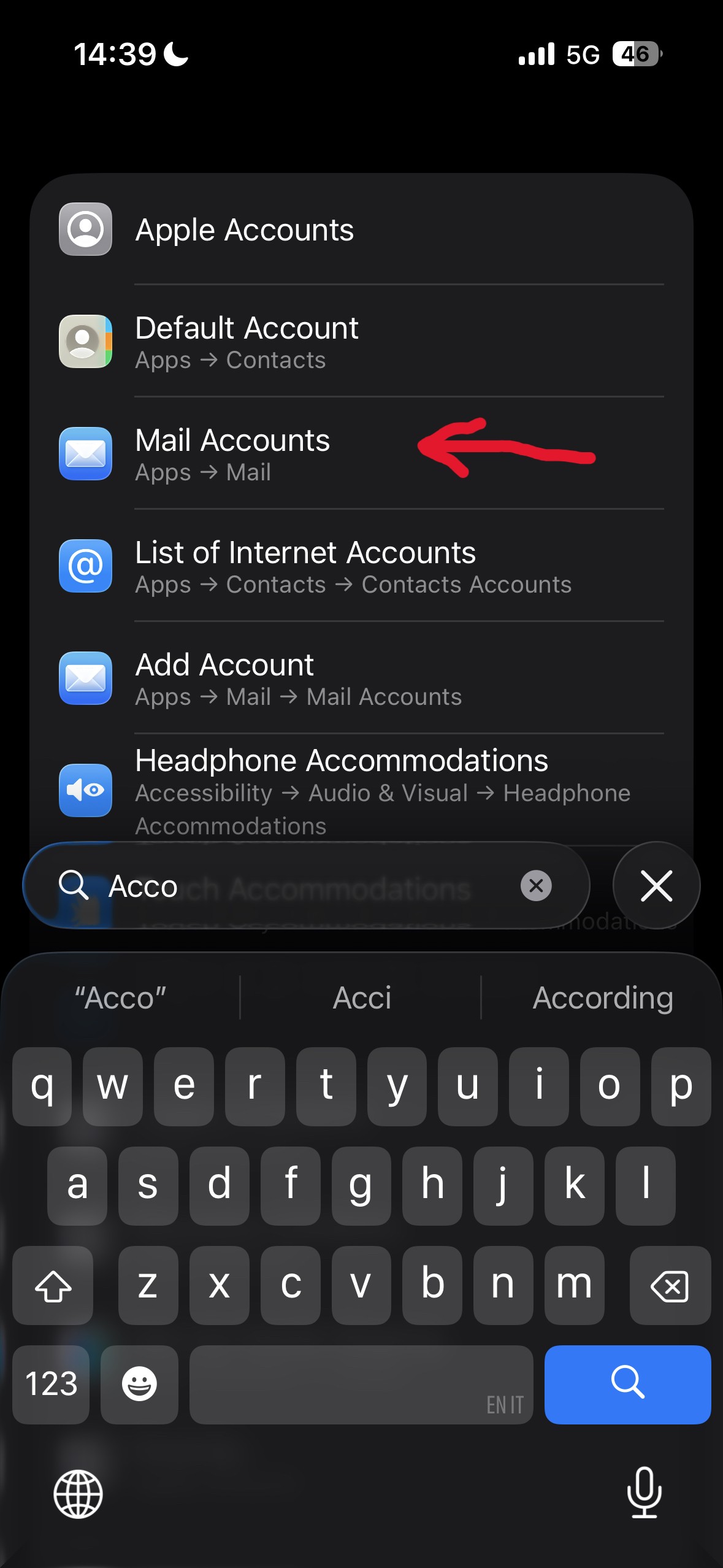
Open the Settings app on your iPhone, scroll down or use the search bar to find Mail, then select Accounts.
Removing the Previous Account (if applicable)
If an old Mail account is already configured and no longer needed, tap on it and select Delete Account. Confirm the action when prompted.
Adding a New Account
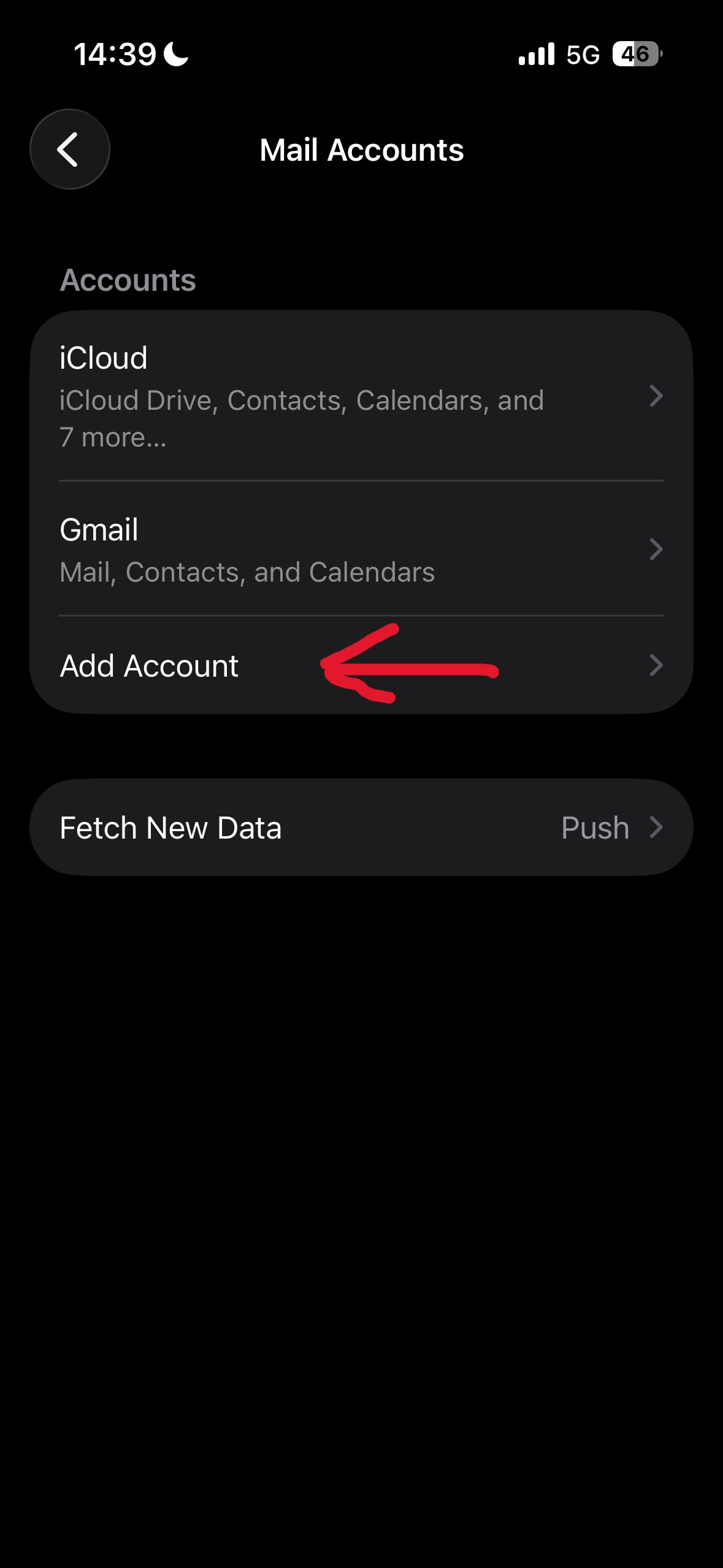
From the Accounts screen, tap Add Account to begin setup.
Selecting Microsoft Exchange
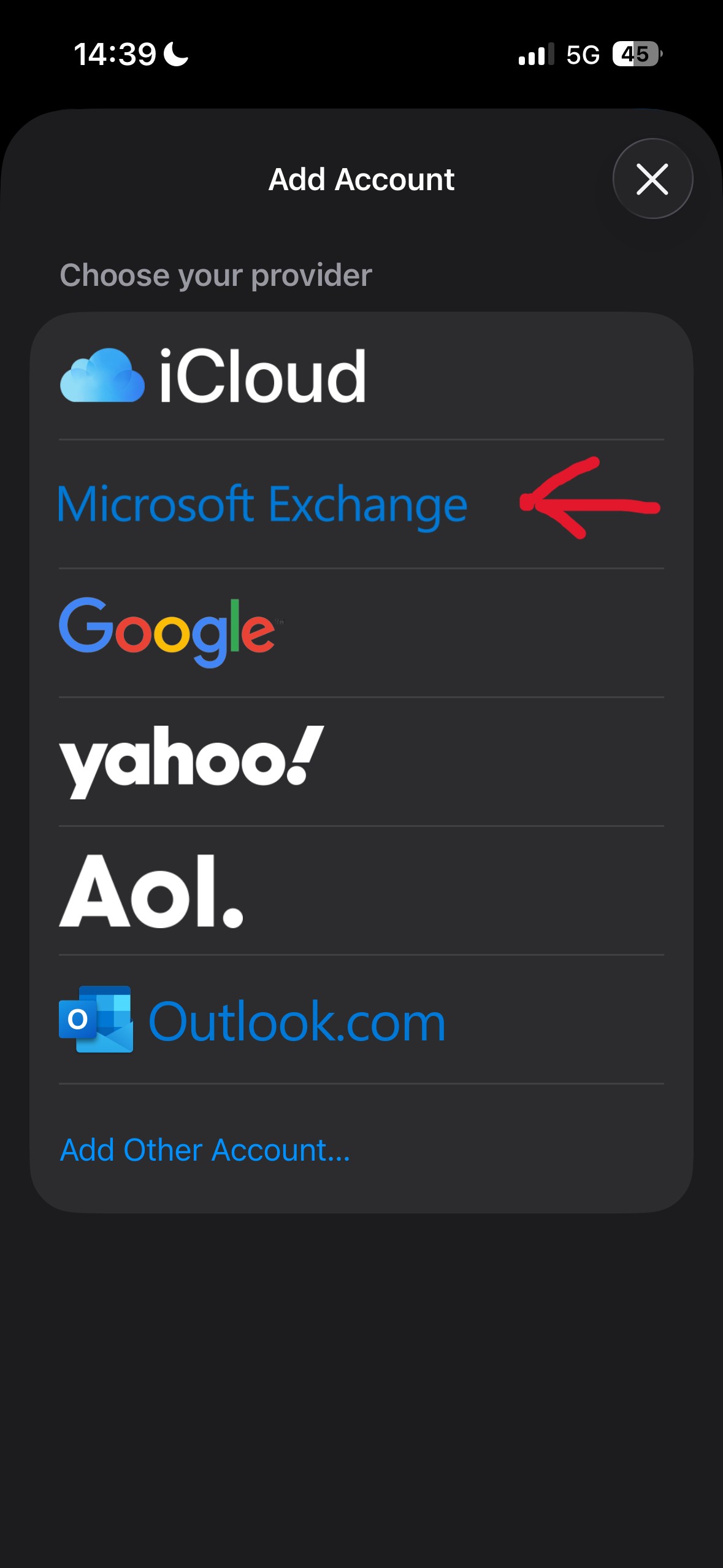
Choose Microsoft Exchange as the type of account to configure.
Entering Email Address and Description
In the Email field, enter your email address. In the Description field, provide a label for this account (e.g., "Work", "Personal").
After filling in the details, tap Next, then tap Sign In.
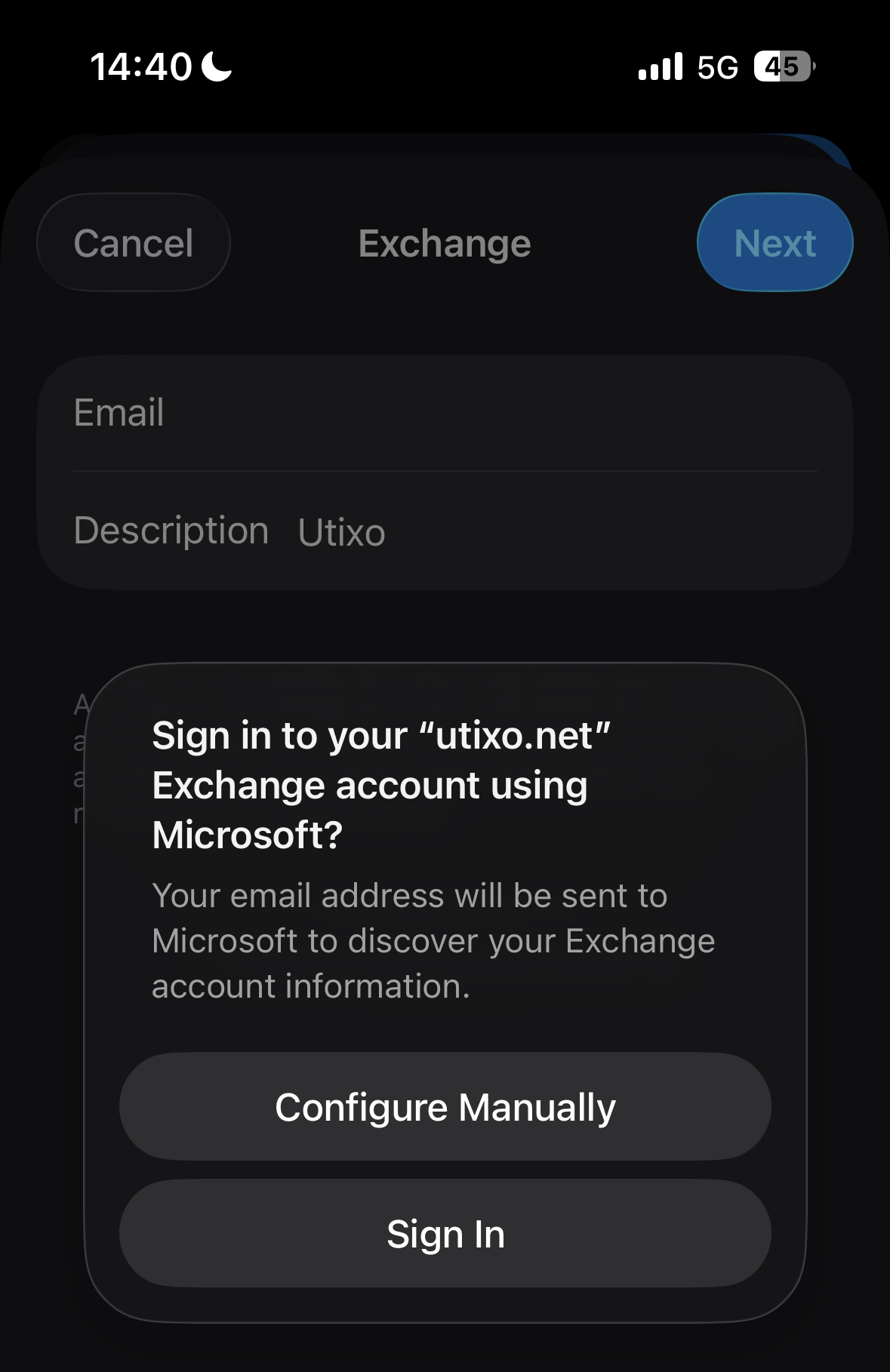
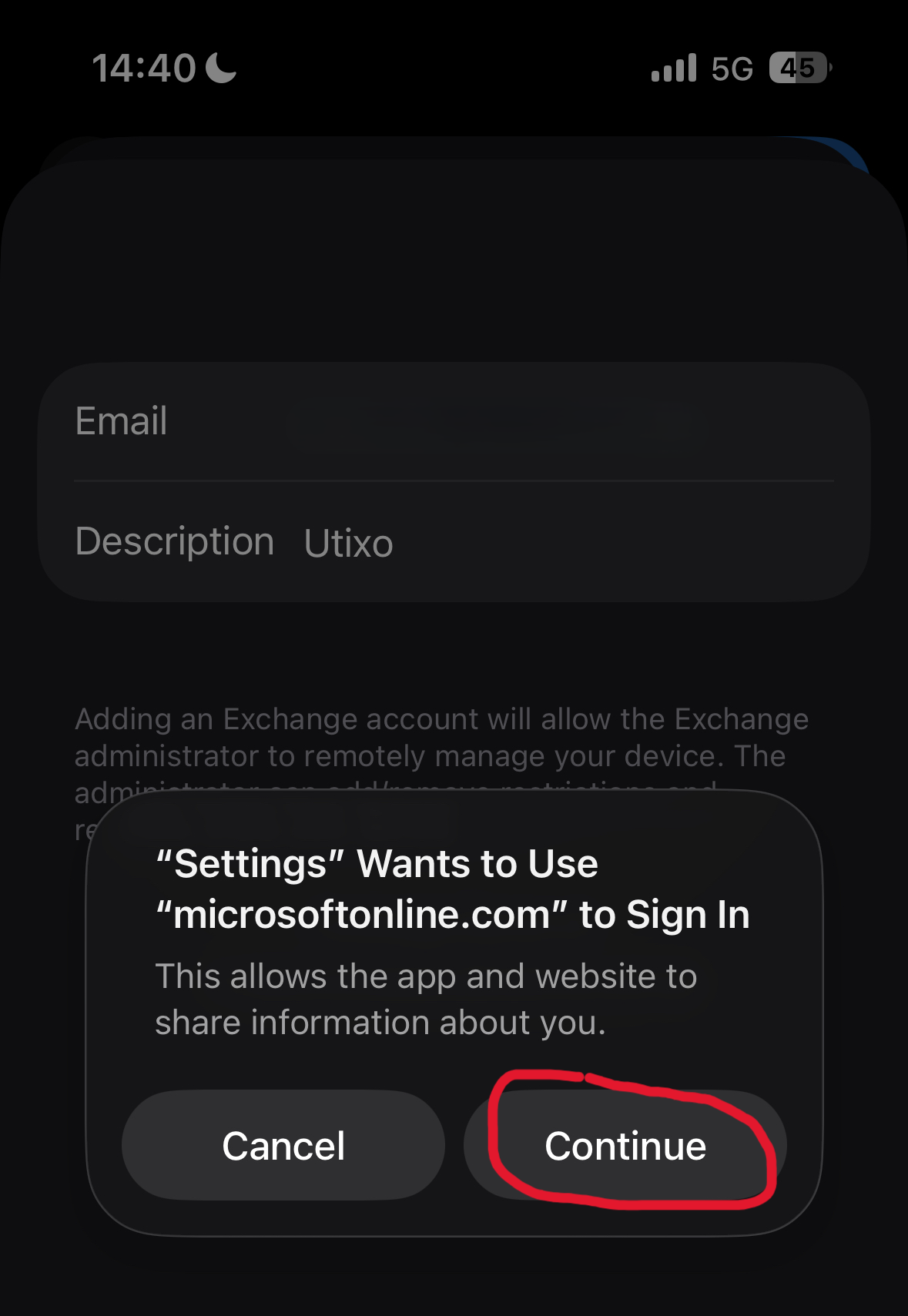
Important: Confirmation Prompt
When the prompt appears, tap Continue to proceed.
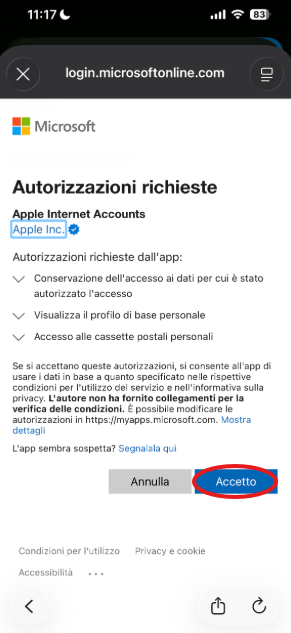
Authorizations and Final Steps
Enter your password, then tap Accept to authorize access.
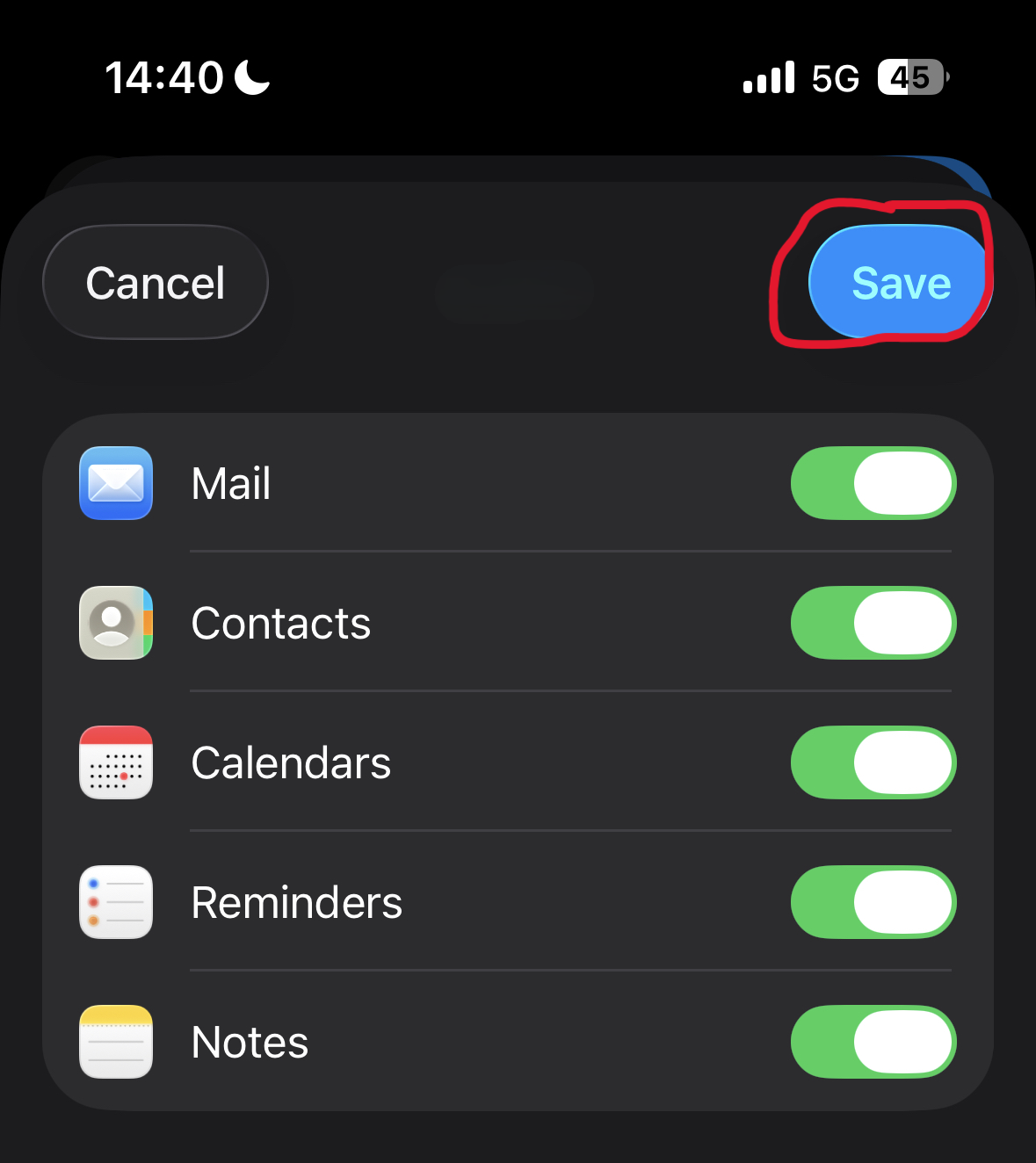
Finally, make sure all desired services (mail, contacts, calendars, etc.) are enabled, then tap Save to complete the configuration.