
Recovering Emails Deleted from Trash in Microsoft Exchange
Even after an email is removed from the Trash folder, Microsoft Exchange retains it in a hidden folder called Recoverable Items. The retention period depends on company-specific settings but generally ranges between 14 and 30 days before permanent deletion.
To ensure long-term data protection and recovery beyond that period, it is highly recommended to use a dedicated M365 backup service.
Recovering Emails via Outlook on the Web (Recommended Method)
- Log in to your account through the Outlook on the Web portal.
- In the left column, select the Deleted Items folder.
- Click on Recover items deleted from this folder at the top of the message list.
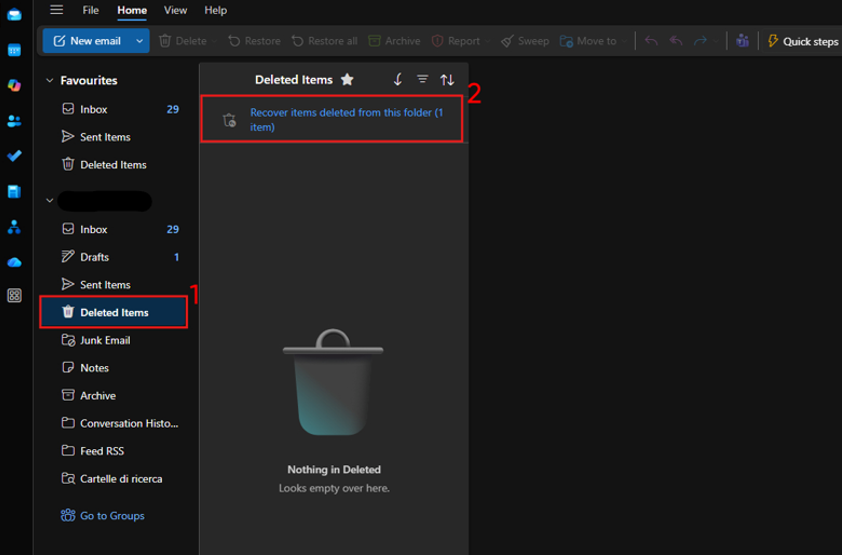
- Select the desired items, or check the box next to Recoverable Items to select all.
- Click Restore to return the emails to their original folders.
Recovering Emails via Outlook Desktop
- Open the Outlook app and select the Deleted Items folder under your Exchange account.
- Ensure the Home tab is selected in the top ribbon.
- Click on Recover Deleted Items from Server, or if using the New Outlook for Windows, click Recover items deleted from this folder.
- In the popup window, select the messages you wish to recover.
- Make sure the Restore selected items option is checked, then confirm by clicking OK.