This guide explains how to set up or migrate your email account on an Android device using the Microsoft Outlook app. By following the steps below, you’ll be able to read and manage email on the go in a simple and secure way.
Install Microsoft Outlook
Open the Google Play Store, search for Microsoft Outlook, then complete the download and installation of the app.
Open the app and add an account
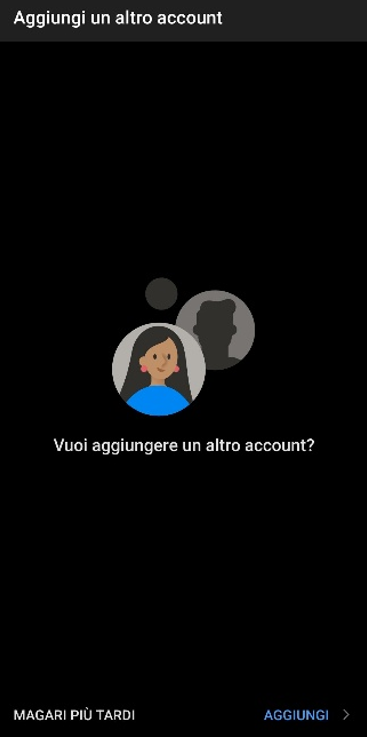
Launch Outlook. On the welcome screen, tap Add Account to start setting up your mailbox.

Enter your sign-in details
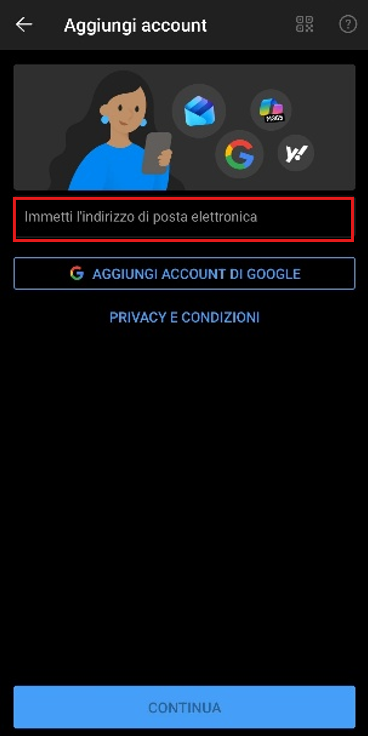
Email address
In the dedicated field, enter your full email address (for example, name@domain.com) and tap Continue.
Password and authentication
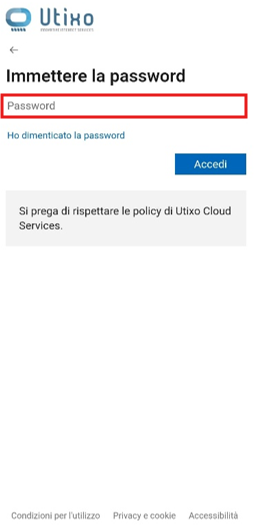
On the next screen, type your account password and proceed.
Note: if your organization uses two-factor authentication (2FA), follow the on-screen prompts to complete verification (for example, via an authenticator app or by approving the sign-in request).
Finish setup and access your inbox
If the credentials are correct, Outlook will complete the verification and your account will be configured automatically. At the end, you may be asked to add another account (optional).
If you don’t need to add more mailboxes, tap Maybe Later or Get Started to access your inbox right away.