
User-side management of Microsoft 365 groups
If your organization allows it, users can manage some Microsoft 365 groups directly from Outlook, without needing to access the admin panel. This feature makes it easy to create new groups, update existing ones, and manage members quickly and efficiently.
How to access the Groups section in Outlook
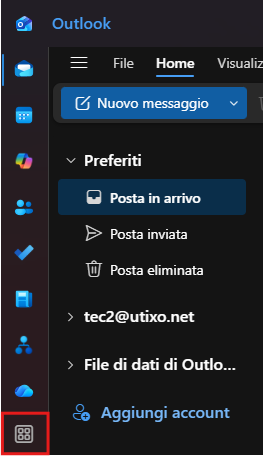
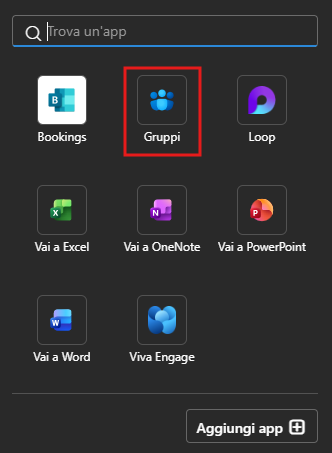
To view the available groups, open Outlook and, from the left-hand sidebar, click More apps, then select Groups.
Create a new group
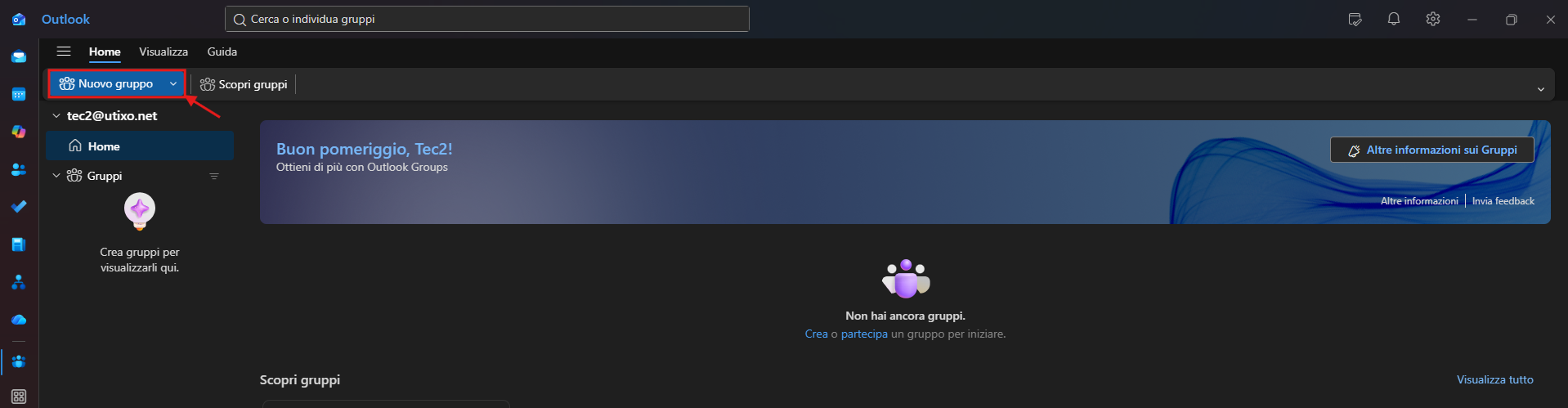
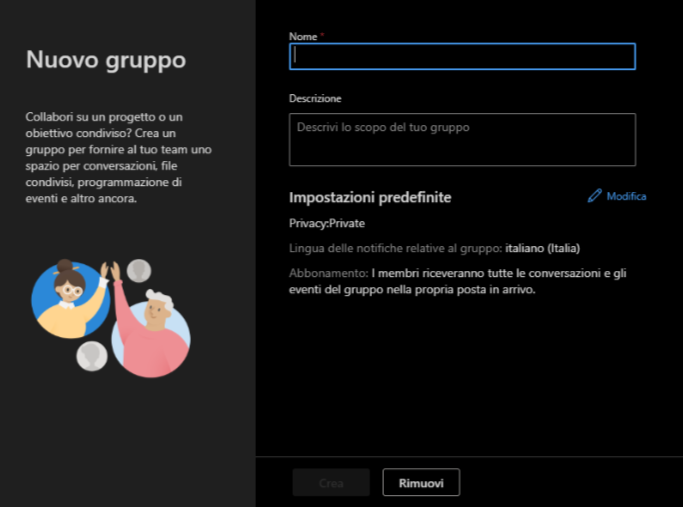
To create a new group in Outlook, go to the Groups section and click New group. During the setup process, you will be asked to enter key details such as the group name, associated email address, description, and privacy settings.
These settings help define the purpose of the group and determine who can view or join it.
Edit an existing group
If the user is a group owner, they can open the group and select Edit group to update its main details. Editable items include the group name, description, associated image, and general settings.
This option is useful for keeping the group up to date and aligned with the needs of the team or department.
Manage group members
The group owner can also add or remove members and assign other users as owners. This makes it easier to share management responsibilities and ensure operational continuity if the main owner is unavailable.