
Microsoft 365 License Management via UCMP (Utixo Control Panel)
Microsoft 365 license management must be handled exclusively through the Utixo Control Panel (UCMP) and not directly from the Microsoft portal. All upgrade, downgrade, increase, or reduction requests must be processed through the Utixo platform to ensure administrative consistency, correct data alignment, and centralized billing management.
Warning: possible license number discrepancies
The Microsoft portal may display a different number of licenses compared to what is shown in UCMP. This is normal. For administrative and accounting purposes, the data displayed within the Utixo system is always authoritative.
How to Change the Number of Licenses (Add or Reduce)
To increase or decrease the number of Microsoft 365 business licenses associated with your account, follow these steps:
Access the Service
- Log in to your UCMP control panel.
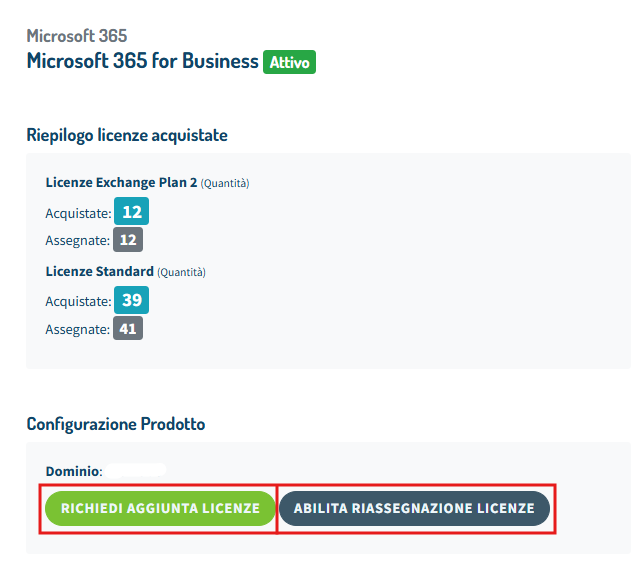
- Select the Microsoft 365 for Business product by clicking on Active.

Request New Licenses or Modify Quantity
- On the next screen, you will see the current number of active licenses.
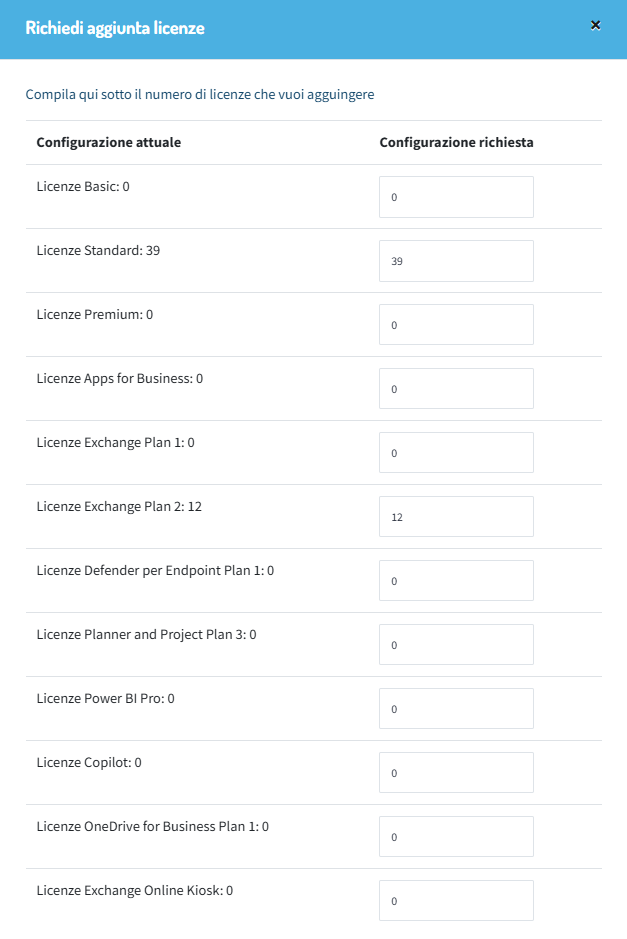
- To change the quantity, click on Request license addition.
- You can then add new licenses or remove existing ones based on your company’s needs.
Reassigning Existing Licenses
If you do not need to purchase new licenses but simply want to reassign existing ones to different users:
- Click on Enable license reassignment.
- Follow the procedure described in the license reassignment guide.
This dedicated procedure ensures licenses are correctly transferred between users.
Important Notes on Orders, Payments, and Activation
- When you submit an order for new licenses, a proforma invoice is automatically generated. If you require immediate activation, payment must be completed right away. Otherwise, standard payment processing times will apply. Any other outstanding invoices related to the service must also be settled.
- Payment can be made by credit card (immediate activation) or bank transfer (activation within 1–2 business days).
The invoice is calculated on a pro-rata basis, meaning charges are proportional to the remaining time until the expiration date of the active licenses. This ensures a single unified renewal date for all licenses, simplifying administrative management.
After payment is recorded, licenses will be available within 1–2 hours and can be assigned directly from the admin.microsoft.com portal. If you subscribe to the Managed Microsoft 365 service, the Utixo technical team will handle the assignment for you.
For approximately 5 days, licenses remain available and assignable to users. After this period, you must use the reassignment procedure to allocate them correctly.
Managed Microsoft 365 Service
The Utixo Managed Microsoft 365 service includes not only the licenses but also ongoing operational management of your Microsoft 365 environment. Instead of simply purchasing licenses, you benefit from a managed, monitored, and technically supported service delivered by a specialized team.
What the service includes
- User and identity management: account creation, modification and removal, group and distribution list management, role assignments, and password resets.
- Security configurations: MFA setup and configuration, access control policies, and suspicious activity monitoring.
- Tenant technical support: helpdesk assistance, ticket management, and technical interventions.
- License management via UCMP: centralized upgrades, downgrades, and quantity adjustments.
- Optional integration with additional services such as email protection and Microsoft 365 backup.
Advanced management contracts are available upon request and may include additional IT services up to full company IT infrastructure management.
For more details, visit the dedicated page: https://utixo.net/it/microsoft-365/