
Remote Support and macOS Device Access – Utixo
Utixo is committed to providing high-quality professional services. In certain situations, this may require access to users’ devices.
This access is essential to deliver personalized and optimized technical support, tailored to each client’s specific needs. Utixo ensures the highest standards of confidentiality and security, always operating with full respect for user privacy and data protection.
The company follows strict cybersecurity protocols and applies proven best practices to ensure every interaction is secure and confidential.
How to request remote support on macOS
To start a remote support session, follow these simple steps:
- Visit https://utixo.net
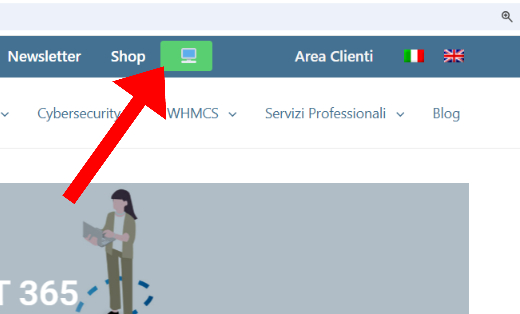
- Click the green button at the top right to download the AnyDesk support tool.
macOS permission settings for AnyDesk
To use AnyDesk on macOS and allow full remote control, you must enable three key permissions in the Security & Privacy settings. Without these, remote functionality will be limited or blocked.
The 3 required permissions:
- Screen Recording: allows the remote technician to view your desktop.
- Accessibility: allows control over the mouse and keyboard.
- Full Disk Access: necessary for transferring files between devices.
How to proceed:
When AnyDesk starts, it displays a status icon next to your ID. Clicking on it will open the corresponding sections in System Preferences where you can grant the necessary permissions.
- Screen Recording and Full Disk Access: after enabling these, you must restart the application for the changes to take effect.
- Accessibility: is applied immediately without a restart.
- After completing the configuration, you’ll see the following window:
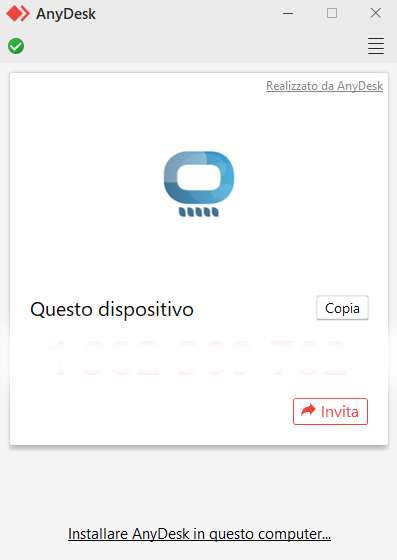
- A Utixo technician will connect as soon as available. Please keep the window open until the support session is complete.