
Multi-user Feature for Aruba Certified Email (PEC) Mailboxes
The Multi-user function allows shared access to a PRO or PREMIUM PEC mailbox by the Owner and one or more collaborators, each with individual login credentials.
Collaborators can access the mailbox via email clients (such as Outlook or Thunderbird), Aruba PEC Webmail, or the Aruba PEC app.
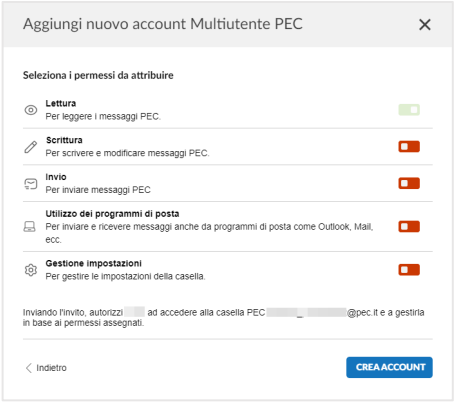
Assignable Permissions
Collaborators can be granted the following permissions:
- Read: to read PEC messages;
- Write: to compose and edit messages;
- Send: to send communications;
- Use email clients: to configure external email programs like Outlook or Thunderbird;
- Manage settings: to change mailbox configurations.
All permissions, except for “Manage settings,” are cumulative. For example, granting “Send” also includes “Read” and “Write.”
Collaboration Setup
The Owner can enable new collaborators by logging into the Aruba PEC Webmail, going to the Settings tab, and selecting Collaborations.
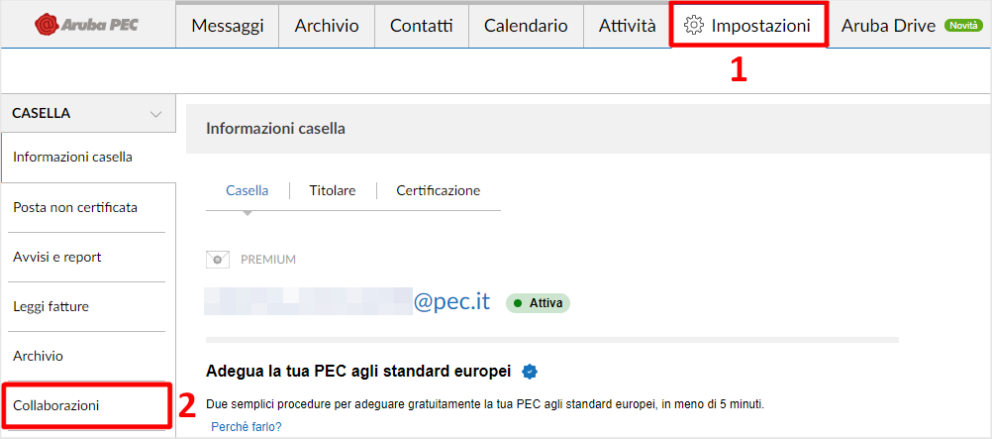
Adding a New Collaborator
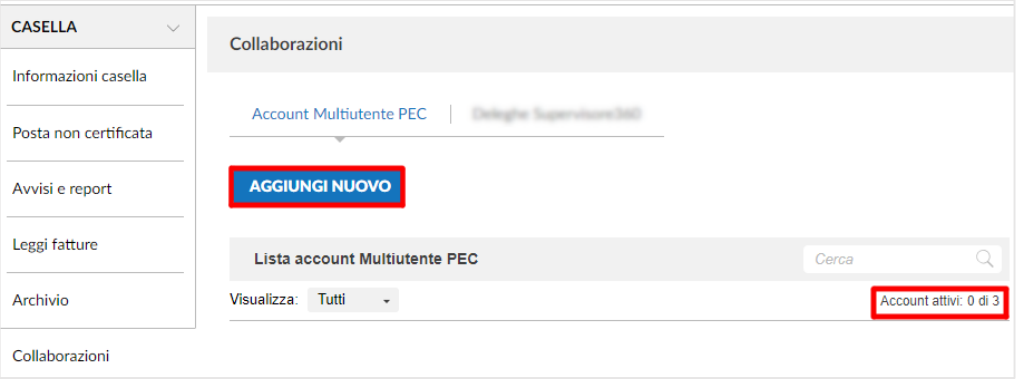
In the PEC Multi-user Account section, click ADD NEW.
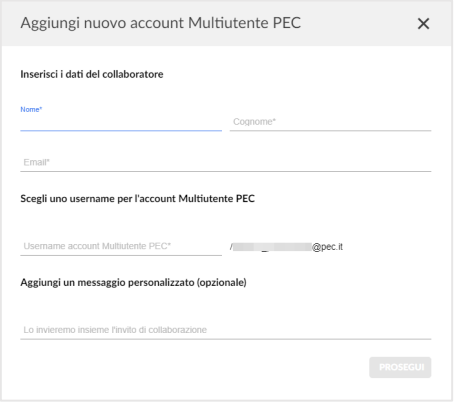
Fill in the required fields and click Continue.
Set the desired permissions and click Create account.
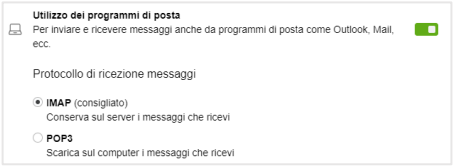
If email client access is enabled, choose the preferred receiving protocol. SMTP is enabled by default.
Invitation and Activation
The collaborator will receive an email with a link to activate the account and set their password.
The invitation is valid for 7 days. If it expires, a new one must be sent. To reuse the same username, the previous account must first be removed.
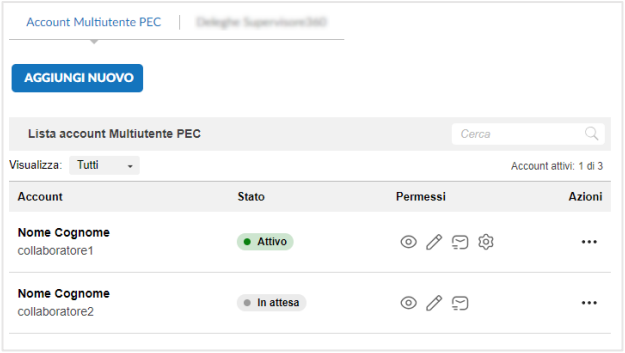
The PEC Multi-user Account List section displays the request status.
Available Information
- Account details: name, surname, and username;
- Request status;
- Granted permissions (via icons);
- Available actions depending on the account status.
Credential Management
If the Owner resets the password, the collaborator’s access is suspended until the credentials are updated.
If the collaborator requests a reset, they must provide the username and the Owner’s tax code.
Creating the Collaborator Password
Using the activation link from the email, the collaborator must create a password that meets the following criteria:
- Between 8 and 256 characters;
- At least one uppercase and one lowercase letter;
- At least one number;
- At least one symbol from: ! # $ % & @ ( ) * + , . / - : ; = ? [ ] _ { | } \
- Must differ from the last 12 used passwords.
Click Save Password to complete the activation.
The collaborator will receive a confirmation email with login details and can access via Webmail, app, or email client. If 2FA is enabled by the Owner, the collaborator must also configure it.
Webmail Access for Collaborators
Upon login, the collaborator will see a banner displaying the PEC address and the username used.

Navigation Menu
- Account permissions: view active permissions;
- Manage account: update profile information;
- Logout: securely sign out.
Additional Features
If granted by the Owner, the collaborator can access services such as electronic invoice viewing or message archiving from the Settings tab.
Two-Factor Authentication (2FA) Access
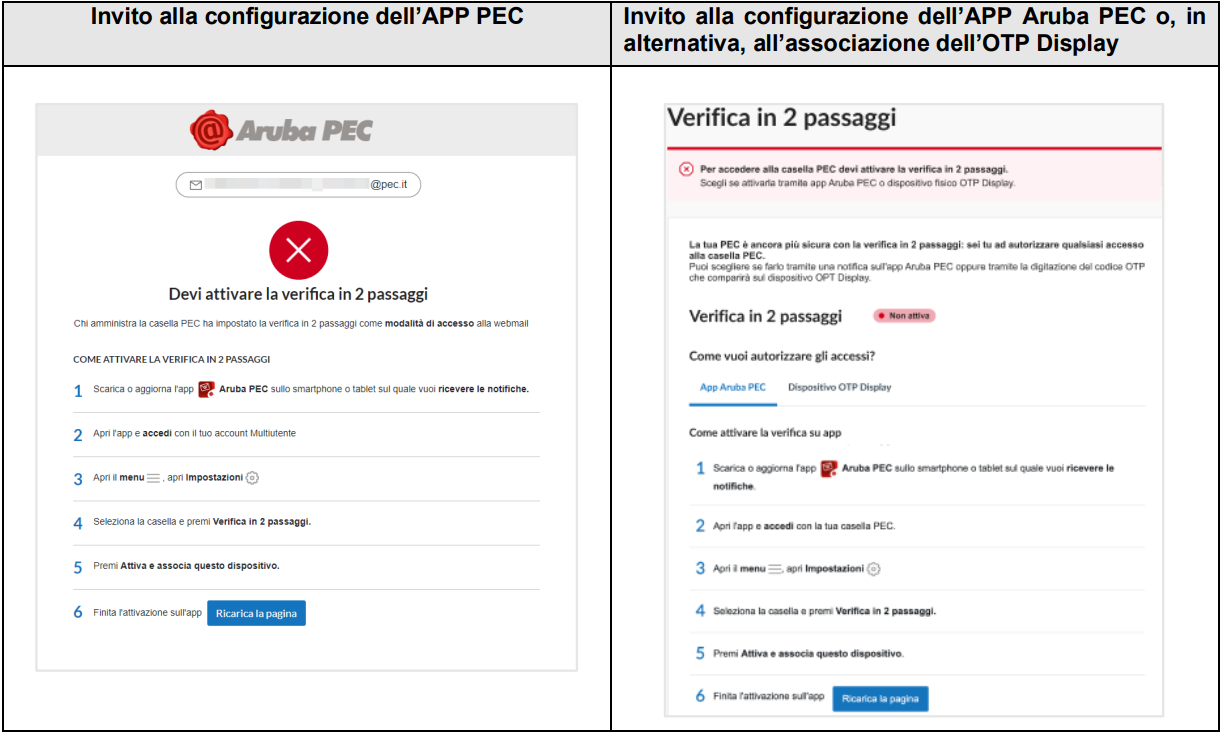
If activated by the Owner, the collaborator will be prompted to set up 2FA at their first login.
Configuration Methods
- Aruba PEC App;
- OTP Display device.
Using with Email Clients
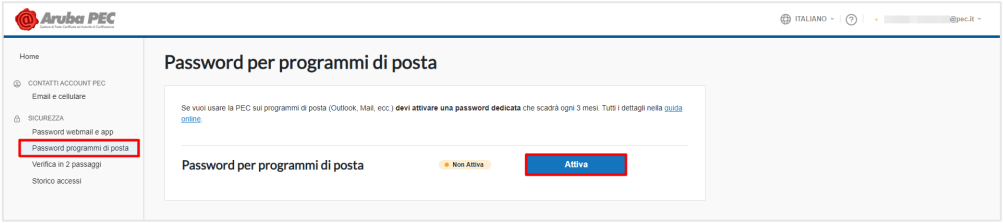
To use PEC with external clients, a dedicated password must be generated as follows:
- Go to Account Management;
- Select Email client password;
- Click Activate to generate it.
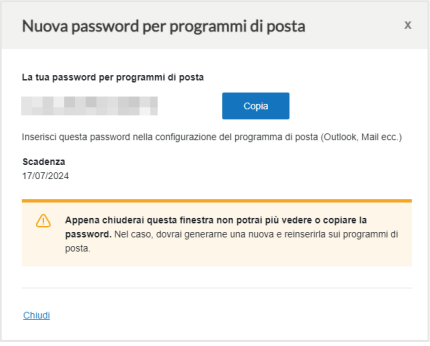
- Click Copy and paste the password into your client or PEC archive configuration.
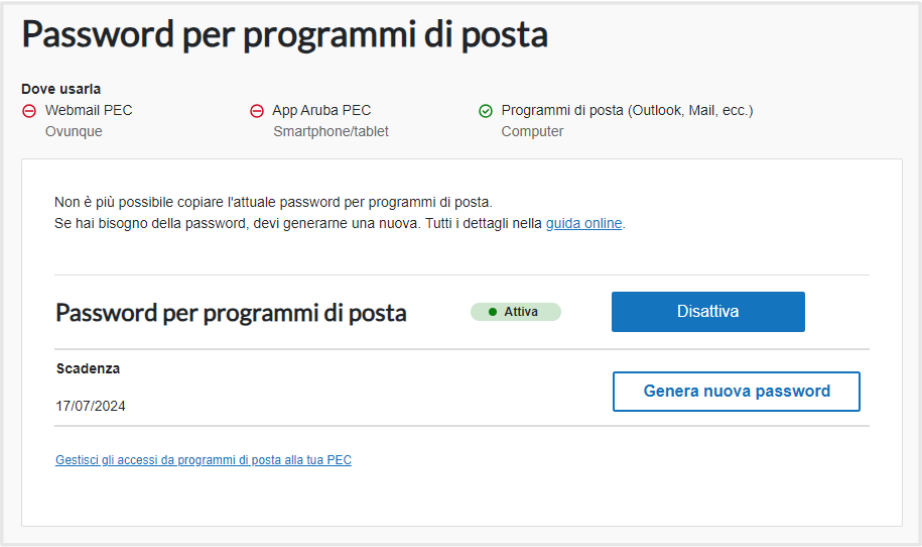
The password is valid for 90 days.
Expiration Management
- Notifications: Aruba sends alerts via control panel and email;
- Renewal: click Generate new password upon expiration;
- Update: replace it in all configured clients and services.
Email Sending Traceability
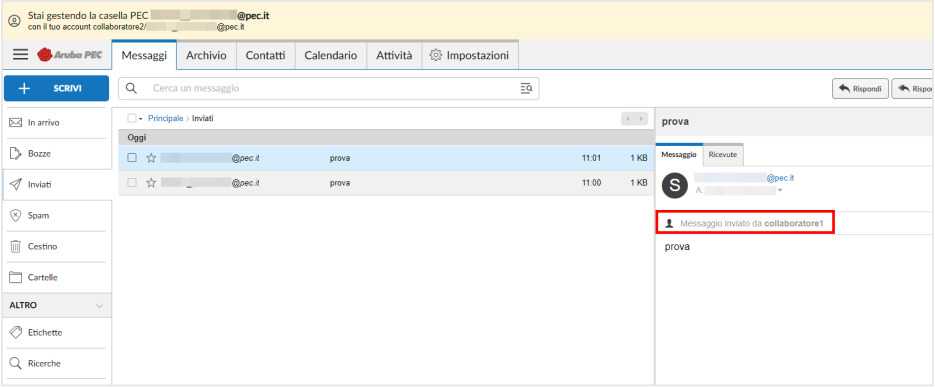
When a PEC message is sent by a collaborator, Aruba Webmail displays their name in the message details.
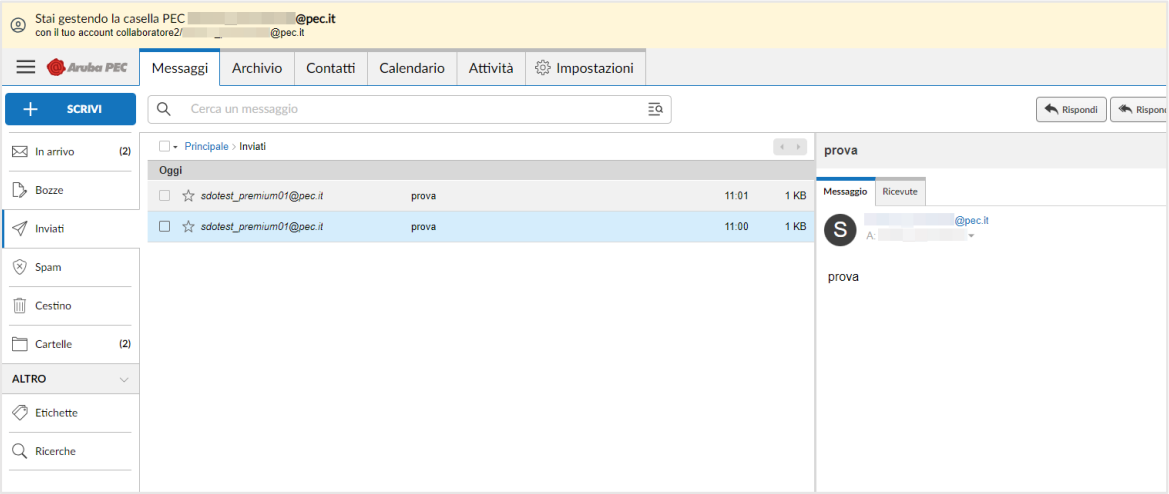
If the message is sent by the Owner, no specific sender information is shown.
Note
Sender traceability is only visible from Aruba Webmail. If using an external client (e.g. Outlook), this information is not available.