
How to Enable Two-Factor Authentication (2FA) on Shop Utixo
What is Two-Factor Authentication (2FA)?
Two-factor authentication (2FA) is a security feature that adds an extra layer of protection to your Utixo account, reducing the risk of unauthorized access.
Once enabled, you will need the following to log in to your client area:
- Your password, as usual.
- A temporary 6-digit code, generated by an authenticator app on your smartphone.
This means that even if someone obtains your password, they will not be able to easily access your account without the second authentication factor.
1. Log in to your Utixo Client Area
- Visit Shop Utixo.
- Log in using your email address and password.
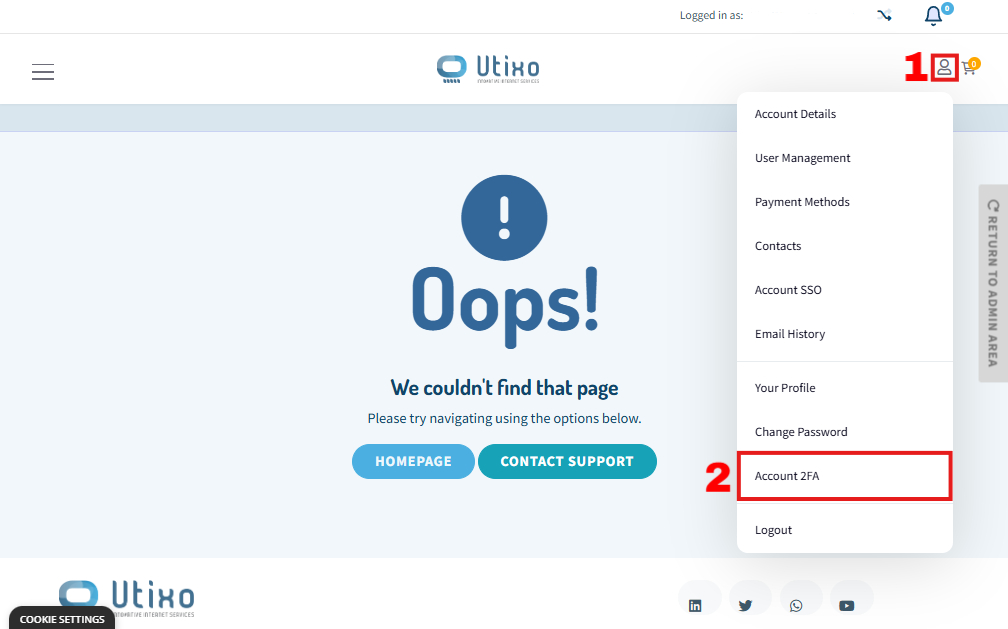
- Click the profile icon in the top-right corner.
- From the dropdown menu, select Account 2FA.
2. Enable Two-Factor Authentication
On the security settings page:
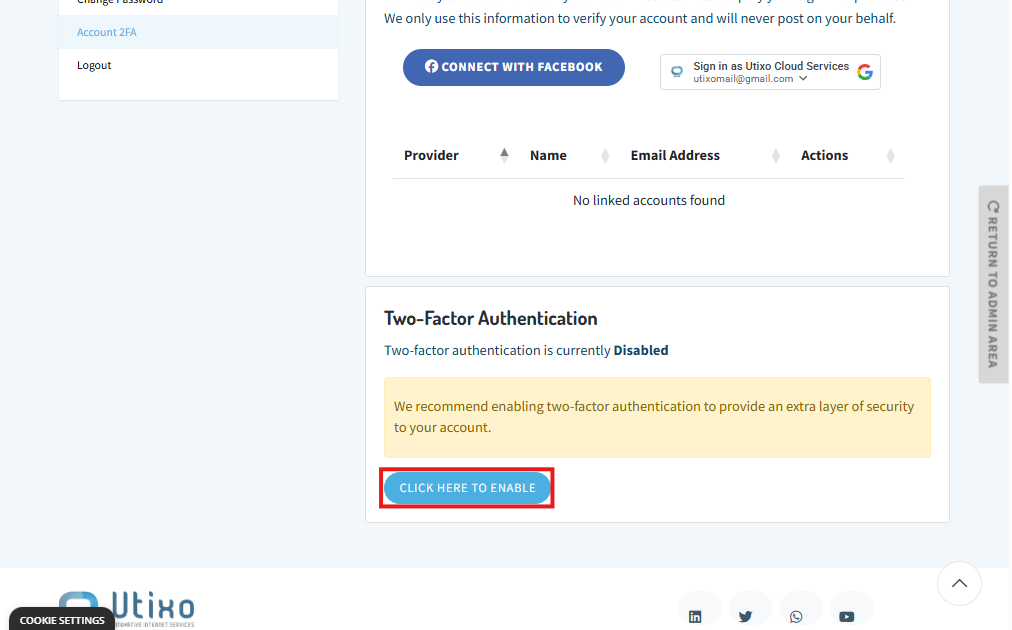
- Locate the Two-Factor Authentication (Autenticazione a doppio livello) section.
- Click CLICK HERE TO ENABLE.
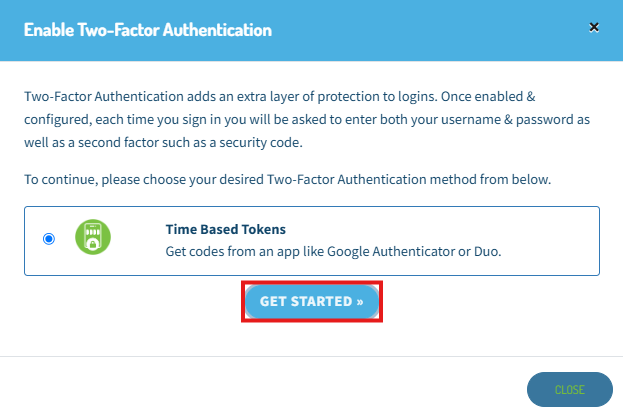
- If prompted, select your preferred authentication method.
- Click Get Started to begin the setup.
The system will display a QR code that you need to scan with your authenticator app.
3. Set Up Your Authenticator App
To use 2FA, you need an authenticator app installed on your smartphone.
For example, you can use:
- Google Authenticator, available for Android and iPhone.
- Microsoft Authenticator, available for Android and iPhone.
After installing the app:
- Open the authenticator app on your smartphone.
- Select the option to add a new account.
- Choose Scan a QR code.
- Scan the QR code displayed in your Shop Utixo client area.
- The app will start generating temporary 6-digit verification codes.
Note: verification codes are automatically refreshed, usually every 30 seconds.
4. Confirm Activation
- Return to the Shop Utixo 2FA setup page.
- Enter the 6-digit verification code displayed in your authenticator app.
- Click Confirm (Conferma).
If the code is correct, the system will confirm that two-factor authentication has been successfully enabled.
5. Save Your Recovery Code (Backup Code)
Once the setup is complete, Shop Utixo will display a recovery code (Backup Code).
This code is extremely important because it may allow you to regain access to your account if you lose access to your authenticator app.
We recommend that you:
- Store the code in a secure location, preferably in a password manager.
- Never share it with anyone.
- Do not store it in locations accessible to unauthorized users.
Important: make sure you save your recovery code before closing the window. You may need it if your smartphone is lost or replaced.
After saving the code, click Close (Chiudi) to complete the setup.
6. How to Log In After Enabling 2FA
From your next login, the process will be as follows:
- Visit Shop Utixo.
- Enter your email address and password.
- When prompted, open the authenticator app on your smartphone.
- Enter the temporary 6-digit code.
- Complete the login process to access your client area.
7. What If You Lose or Replace Your Smartphone?
If you are replacing your smartphone, make sure you transfer your authenticator accounts before you stop using your old device.
If you no longer have access to your authenticator app:
- Log in to Shop Utixo using your email address and password.
- On the 2FA verification screen, select the recovery code option, if available.
- Enter the Backup Code saved during the initial setup.
If you no longer have access to either your authenticator app or your recovery code, contact Utixo Support to request assistance with restoring account access. Identity verification will be required.
Need assistance?
The Utixo Support Team is available to help you through the support area at Shop Utixo.